
Finding Local Providers With a ZIP-Code Service Area Search
Finding Local Providers With a ZIP-Code Service Area Search

A service area search finds local providers that explicitly serve a ZIP code or postal area and shows each profile’s service area, contact details, and reviews. Type in a five-digit code, and you get back a filtered list of businesses that have told the world (and Google) they’ll come to that address.
For consumers, the next move is simple: enter your ZIP, filter by the service you need (plumber, personal trainer, roofer), then open each matching profile and check two things: whether the listed service area actually includes your ZIP, and how to reach the business directly.
- Consumers: ZIP → category → open profile → confirm service area and contact info
- Business owners: if you run a service business, check your service area settings in Google Business Profile before a customer finds a stale listing first
Key Takeaways
Accurate, narrow service-area claims paired with real local evidence outperform broad, unverified coverage lists in both consumer trust and search visibility.
| Point | Details |
|---|---|
| ZIP first, name second | Search by ZIP code and category before browsing by business name to surface providers you’d otherwise miss. |
| Verify the service-area line | Confirm your exact ZIP appears in the profile before assuming a business covers your area. |
| 20-area limit, no radius | Google Business Profile allows up to 20 named service areas; radius settings no longer exist. |
| Proximity beats a long list | Ranking strength concentrates near the business base, not across every ZIP a profile claims. |
| Sync website and listing | Match your “areas we serve” page to your Google Business Profile entries to avoid conflicting signals. |
| Use Local AI Page to compare and claim | Local AI Page lets consumers search by ZIP and lets owners claim and edit an accurate, structured service-area profile. |
Table of Contents
- How to Run a ZIP-Code Service Area Search
- How Do You Set and Verify a Service Area in Google Business Profile?
- Why Service-Area Settings Affect Your Visibility
- Best Practices for Keeping Service Area Searches Reliable
- What We Got Wrong About “Cover More Ground”
- Search by ZIP Code and Claim Your Listing With Local AI Page
- Sources
How to Run a ZIP-Code Service Area Search
Start with the ZIP code, not the business name. Most people search backward, typing a company they’ve heard of and hoping it covers their block. Flip that. A ZIP-first search surfaces every provider who claims your area, including ones you’ve never heard of but who show up every week on your street.
Here’s the sequence that actually works:
- Enter your ZIP or postal code into a local search tool or a ZIP-based directory.
- Pick the category you need: HVAC, auto repair, hair salon, personal training, roofing.
- Scan each result’s service-area line first, before anything else. If your ZIP isn’t named or included, skip it.
- Open two or three matching profiles and check services offered, recent reviews, and contact methods.
- Compare the shortlist on the four things that matter (below), then call or message.
Before you commit, run this quick checklist against each profile:
- Does the ZIP or city you live in actually appear in their stated service area?
- How close is their base location to you? Closer usually means faster response and lower travel fees.
- Are the reviews recent, ideally within the last few months, not just plentiful?
- Can you contact them directly by phone, form, or message, without hunting for a number?
A profile like Climate Control Services in Elgin, Illinois shows what a complete listing looks like: named service area, specific services, and a direct way to reach them, all on one page instead of scattered across a website.
Pro Tip: If a business lists 40 towns as its service area but has reviews from only two of them, that’s a signal to call and confirm they actually cover your ZIP before you book anything.
How Do You Set and Verify a Service Area in Google Business Profile?
Business owners face the mirror image of the consumer problem: if your service area setting is wrong, vague, or missing, you’re invisible to the exact ZIP-code searches described above.
Google Business Profile lets you name up to 20 service areas by city, postal code, or another recognized area. There’s no radius option anymore. You can’t tell Google “serve everything within 25 miles”; you have to name the actual places.
To set it up:
- Open your Business Profile and go to Edit Profile → Location → Service Area.
- Add specific cities or ZIP codes, up to 20, that you can genuinely dispatch to.
- If you have no public storefront, hide your address and mark the listing as service-area only.
- Save, then cross-check every entry against where you’ve actually completed jobs.
Verification for a pure service-area business isn’t automatic. Google generally wants you to confirm the business is legitimate and correctly categorized, and documentation requirements apply before the profile goes fully live, including proof tied to the business itself and, in some cases, a verifier who can confirm the operation.
Common mistakes to avoid:
- Using a virtual office or a relative’s address just to “qualify” for a location, which Google’s guidelines treat as a red flag.
- Running duplicate or overlapping listings for the same business under slightly different names.
- Adding ZIP codes you’ve never actually worked in just because they’re nearby.
Why Service-Area Settings Affect Your Visibility
Naming a ZIP code in your service area does not relocate your business there, and it doesn’t guarantee you’ll rank when someone in that ZIP searches. Google evaluates service-area businesses on proximity, relevance, and prominence, and proximity is measured from your actual business base, not from the areas you’ve listed.
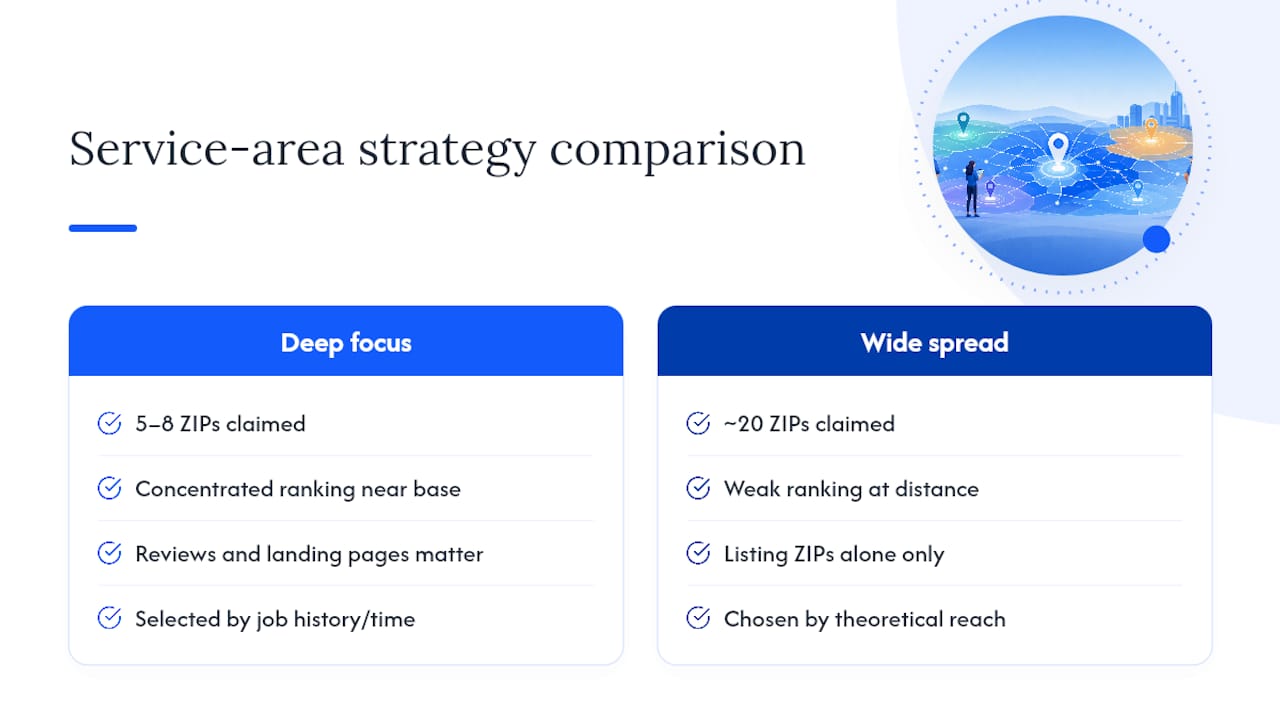
That distinction trips up a lot of owners. Claiming 20 cities feels like casting a wider net. In practice, ranking strength concentrates near your physical location, and a ZIP code fifteen minutes away will usually outrank one an hour out, regardless of what your profile lists.
What actually moves the needle in a distant ZIP: reviews from customers in that area, a landing page on your website that names it specifically, and consistent business information across directories. Listing the ZIP alone does none of that work.
Google itself suggests a rough boundary for realism: service areas generally shouldn’t extend much beyond a two-hour drive, and claiming an entire state invites scrutiny rather than more leads.
A better rule of thumb: pick your top five to eight ZIPs by actual job history and travel time, not by how far you’re theoretically willing to drive on a good day. Depth in fewer areas beats a thin spread across twenty.
Best Practices for Keeping Service Area Searches Reliable
Accuracy is the whole game here, on both sides of the search.
If you’re a business owner, your Google Business Profile service areas and your website’s “areas we serve” page need to match, exactly. A documented alignment between the two is one of the more reliable local ranking signals, and mismatches confuse both customers and search engines. Build a dedicated location page only for a city where you have real job history, not as a template swap with the city name changed.
Consumers benefit from the same discipline in reverse:
- Confirm the service area on the profile actually names your ZIP or a directly bordering one.
- Read the two or three most recent reviews, not just the star average.
- Ask about travel fees or minimum job sizes before you assume a “yes” on coverage means a free visit.
For owners, measurement closes the loop. GBP Insights and call-tracking tell you which ZIPs are actually generating calls, versus which ones you’ve just assumed are working. A window film company’s public service-area page is a decent example of naming coverage plainly instead of vaguely.
Pro Tip: Run a search from your own ZIP code once a month, the way a customer would. If your own business doesn’t show up cleanly, neither will you for anyone else in that ZIP.
What We Got Wrong About “Cover More Ground”
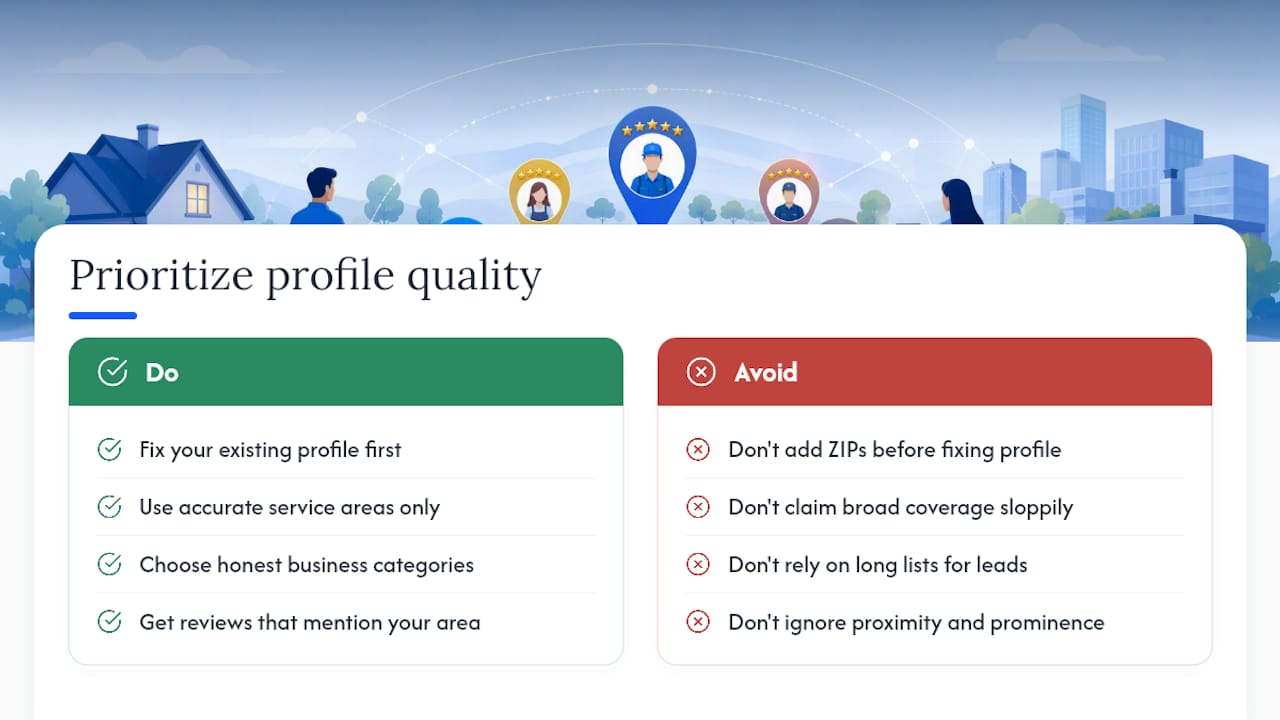
Most advice on service areas treats the setting like a lever: add more ZIPs, get more leads. The data doesn’t support that. Proximity and prominence do far more work than the length of your coverage list, and a 20-area listing with three real reviews will lose to a 6-area listing with fifty.
The overlooked point is that a service area search, from the consumer’s side, is really a trust filter first and a location filter second. People aren’t just checking “do you serve my ZIP.” They’re checking whether the profile that claims to serve it looks credible once they get there.
That changes the priority for owners. Before adding a 15th ZIP code, fix the profile you already have: accurate service area, honest categorization, reviews that actually mention your area. For multi-location or franchise operations, that discipline matters even more, since sloppy coverage claims multiply across every location instead of just one.
The reader’s real job isn’t mastering a settings menu. It’s matching what you claim to what you can actually deliver, in both directions.
Search by ZIP Code and Claim Your Listing With Local AI Page
If you’ve followed the steps above, you already know how tedious it is to cross-check service areas, reviews, and contact details across a dozen open browser tabs. Local AI Page was built to collapse that into one search: enter a ZIP code, pick a category, and see verified profiles with their service areas, services, and direct contact info side by side.
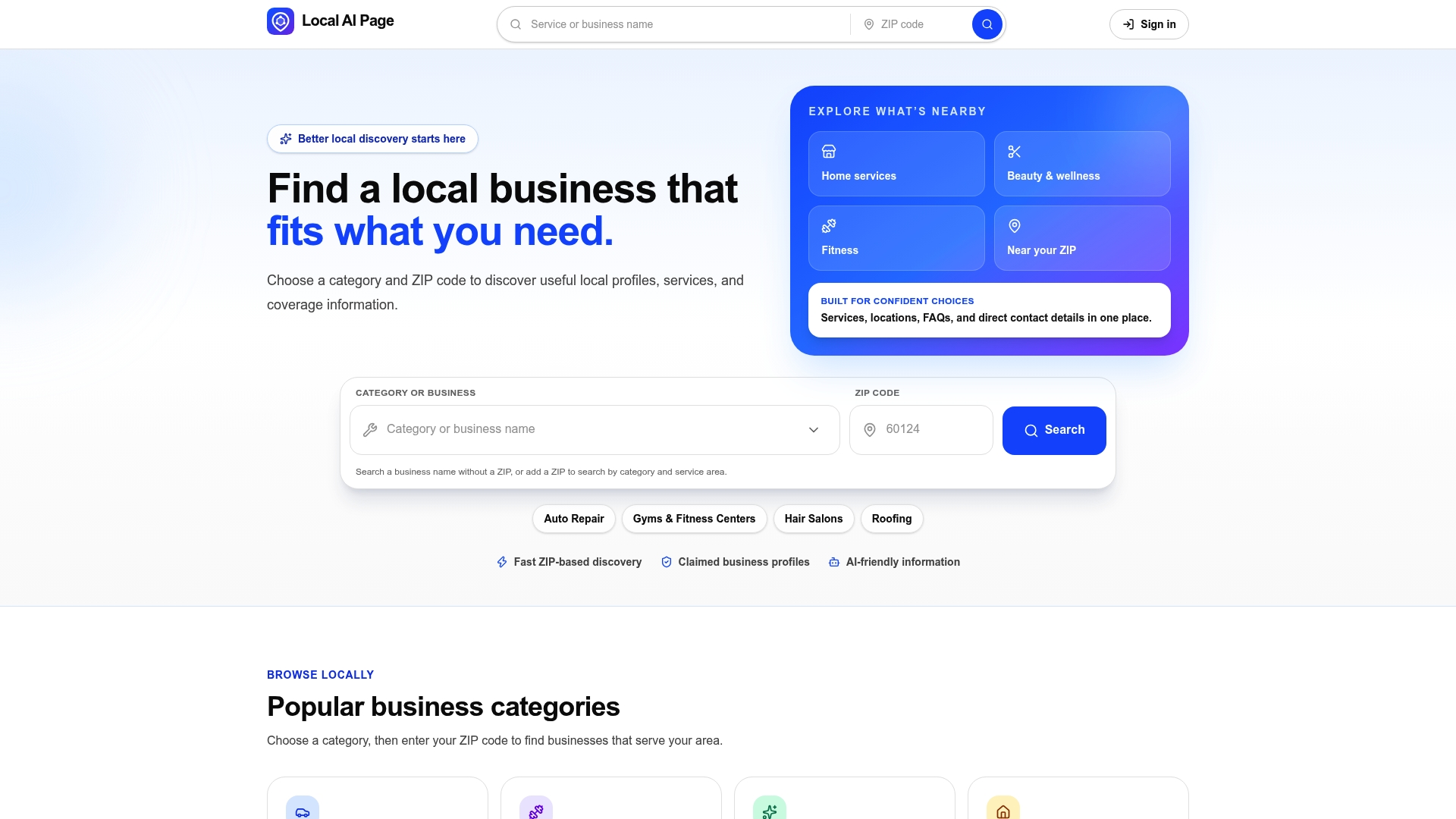
For consumers, that means less guessing about who actually covers your street and more time spent comparing the businesses that do. Browse by ZIP code directly, or check out an example page like Local Businesses in Lombard, IL 60148 to see how coverage is presented.
For business owners, claiming your profile means you control the exact service areas listed, keep them synced with reality, and present an AI-friendly structured page that’s easier for both customers and search tools to read correctly. If you’ve been putting off fixing a stale or overbroad service area, claim your listing today and set it right the first time.
Sources
- Manage your service areas for service-area & hybrid businesses - Google Business Profile Help
- How to get your service area business verified on Google
- Local Search for Service-Area Businesses in 2026 | OgreLogic